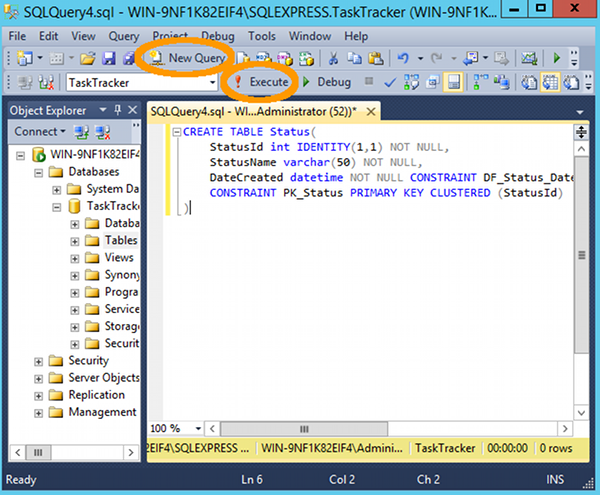
To create a table in SQL Server using a query:
- In the SQL Server Management Studio, click the New Query button on the toolbar
- Type or paste a
CREATE TABLEscript (example below) - Click the ! Execute button on the toolbar
Here’s an example:

To create a table in SQL Server using a query:
CREATE TABLE script (example below)Here’s an example:

To use the Query Designer in SQL Server:
The query will appear in the query window. To run the query, click ! Execute or press F5
Below are screenshots for the above steps.
To create a form in Access 2013 or 2016:
This creates a form based on the table or query that you selected from the navigation pane. You can modify the form as required.
You can also create a blank form (using the Blank Form button) or you can use the Form Wizard to create a form.
To create a query in Access 2013 or 2016:
The results of the query will be displayed.
You also have the option of saving your query. To save the query, right-click on the query tab. click Save, and name it at the prompt.
To create a relationship in Access 2013 or 2016:
This will create the relationship. You will see the tables in the Relationship tab with lines depicting the relationship between the tables.
To add a macro to a form in Access 2013 or 2016:
To export from Access 2013 or 2016 to Excel:
To create a macro in Microsoft Access 2013 or 2016:
To create a database in the MySQL Workbench GUI:
The database will now be created, and a message will display advising that the script was successful.
To create a table in the MySQL Workbench GUI:
The table will now be created, and a message will display advising that the script was successful.