Oracle Database 26ai has officially landed. As of January 27, 2026, Oracle finally flipped the switch on the General Availability (GA) for the Linux x86-64 version, bringing the “Enterprise Edition” to data centers everywhere. This marks a major turning point in Oracle’s recent rebranding saga, where the anticipated “23ai” was bumped up to 26ai to signal its role as the long-term support (LTS) foundation for the AI era.
Oracle Database has been a powerhouse in enterprise environments for decades, and the new “AI” branding reflects their recent addition of AI-powered features like vector search.
But if you’re a Mac user, you may know that Oracle doesn’t provide native macOS installation binaries for Apple Silicon Macs, which means you can’t do a traditional local install. This can be a pain if you need to run Oracle locally. Fortunately, Docker offers a clean solution in the form of ARM64 Docker images that run natively on Apple Silicon without emulation. This lets you run Oracle AI Database in a containerized environment on your ARM-based Apple Silicon (M1, M2, M3, M4) Mac.
This article walks you through setting up Oracle AI Database 26ai Free on your Apple Silicon Mac using Docker. This free version has some limitations (resource caps, single instance restrictions, no official support). It’s designed for development and learning rather than production use. But it’s a pretty good option if you want to tinker around with Oracle on your local machine. More about the limitations at the end of this article.
Understanding the Architecture
Apple Silicon uses ARM64 architecture, while Oracle Database traditionally ran on x86_64 (AMD64) architecture. The good news is that Oracle AI Database 26ai Free provides native ARM64 support, so it runs natively on Apple Silicon without needing emulation. This means better performance compared to older versions that required Rosetta 2.
Prerequisites
Before you begin, make sure you have the following:
- A Mac with Apple Silicon (M1, M2, M3, or M4 chip)
- macOS 11 (Big Sur) or later
- At least 4GB of available RAM (Oracle Free is limited to 2GB, but Docker and macOS need resources too)
- At least 20GB of free disk space
Step 1: Install Docker Desktop
First things first. You’ll need Docker Desktop for Mac with Apple Silicon support.
If you don’t already have it, head over to the Docker website and grab the Apple Silicon version of Docker. Open the downloaded .dmg file and drag Docker to your Applications folder:
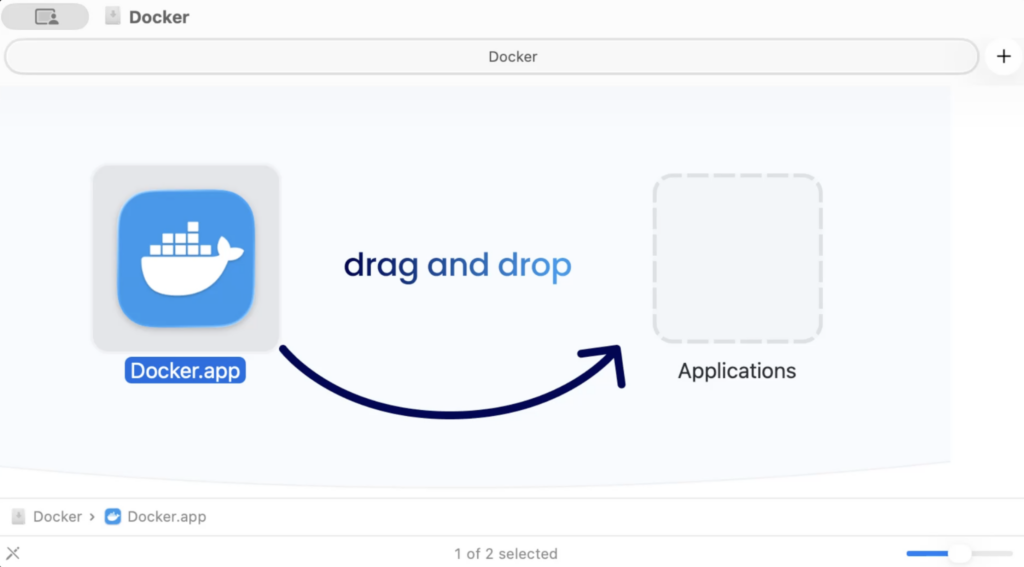
Launch Docker Desktop from Applications and work through the setup wizard. You’ll need to grant Docker some permissions along the way.
Once Docker is up and running, verify everything’s working by opening Terminal and running the following:
docker --versionYou should see the Docker version info pop up.
Step 2: Pull the Oracle Database Docker Image
Oracle provides official Docker images through the Oracle Container Registry. We’ll use Oracle AI Database 26ai Free, which is Oracle’s latest free version that’s perfect for development and learning. It comes with advanced AI features like vector search and modern development tools baked in.
Choosing the Right Image Tag
Oracle provides multiple image variants, but if you want to avoid platform detection issues, use the explicit ARM64 image.
Option 1: Explicit ARM64 Lite
docker pull container-registry.oracle.com/database/free:23.26.0.0-lite-arm64This explicitly pulls the ARM64-optimized lite version, ensuring native performance without emulation. The lite version is about 80% smaller than the full image while retaining all core features.
Here, we’re using the 23.26.0.0 version. Check the Oracle website for the latest version if needed (click the “Get Linux-based container image” button to take you to a list of images).
Option 2: Auto-detect with latest-lite
Another way to do it is to use the tag that doesn’t specify the arm64 version:
docker pull container-registry.oracle.com/database/free:latest-liteIn theory, this should auto-detect your platform and pull the ARM64 version, but in practice may default to AMD64, resulting in a platform warning.
Option 3: Explicit ARM64 Full
If you want the full-featured image instead of lite, use this explicit ARM64 tag:
docker pull container-registry.oracle.com/database/free:23.26.0.0-arm64Again, check the Oracle website for the latest version if needed.
Option 4: AMD64 with Rosetta 2 Emulation
docker pull container-registry.oracle.com/database/free:latestThis pulls the AMD64 version, which requires Rosetta 2 emulation. While functional, it’s slower than native ARM64.
Understanding Platform Warnings
If you see a warning like…
WARNING: The requested image's platform (linux/amd64) does not match the detected host platform (linux/arm64/v8) and no specific platform was requested
…it means you’re pulling an AMD64 image instead of the ARM64 one. This shouldn’t be a problem if you’ve got Rosetta 2 installed, because it will simply run through Rosetta 2 emulation (it may result in slower performance though). If you want to avoid this and get native ARM64 performance, use Option 1 or Option 3.
Installing Rosetta 2 (If Needed)
If you’re using an AMD64 image and don’t have Rosetta 2 installed, you can install it with:
softwareupdate --install-rosettaSome of these images are several gigabytes, so the download might take a few minutes depending on your connection. The lite versions are smaller though, at much less than a gigabyte.
Step 3: Create a Docker Container for Oracle Database
Now let’s create and start a container running Oracle Database. Run this command in your Terminal (adjust the image tag if you chose a different option in Step 2):
docker run -d \
  --name oracle-db \
  -p 1521:1521 \
  -p 5500:5500 \
  -e ORACLE_PWD=YourStrongPassword123 \
  container-registry.oracle.com/database/free:23.26.0.0-lite-arm64
Here’s what each part does:
-druns the container in detached mode (in the background).--name oracle-dbgives your container a friendly name.-p 1521:1521maps port 1521 for database connections, while-p 5500:5500maps port 5500 for Oracle Enterprise Manager Express (web-based interface for managing an Oracle database).-e ORACLE_PWD=YourStrongPassword123sets the password for admin accounts (SYS, SYSTEM, and PDBADMIN). Replace this with a strong password of your choice.
Note: If you chose a different image tag in Step 2 (like latest-lite or the full ARM64 version), make sure to use that same tag here in the docker run command.
Step 4: Connect to Oracle Database
Once the database is ready, you’ve got a few ways to connect.
Using SQL*Plus from Within the Container
You can jump into SQL*Plus directly inside the container by running the following command in your Terminal:
docker exec -it oracle-db sqlplus sys/YourStrongPassword123@FREE as sysdbaJust swap in the password you set earlier.
Running that command will result in something like this:
SQL*Plus: Release 23.26.0.0.0 - Production on Wed Jan 28 09:20:07 2026
Version 23.26.0.0.0

Copyright (c) 1982, 2025, Oracle.  All rights reserved.


Connected to:
Oracle AI Database 26ai Free Release 23.26.0.0.0 - Develop, Learn, and Run for Free
Version 23.26.0.0.0

SQL>
We can see that it successfully connected, and we can see the Oracle release info.
You can run a quick query if you like:
SELECT name, open_mode FROM v$database;Output:
NAME	  OPEN_MODE
--------- --------------------
FREE	  READ WRITE
Note: The above command used FREE, which connected us to the CDB, which is usually where you’d connect to for admin access. For dev work, you’d usually use FREEDB1, which connects to the PDB:
docker exec -it oracle-db sqlplus myuser/MyPassword123@FREEPDB1More about this below.
Using a Database Client
You can also connect from external database clients like SQL Developer, DBeaver, or DataGrip. Here’s what you need:
For administrative access (CDB):
- Hostname: localhost
- Port: 1521
- Service Name: FREE
- Username: system (or sys)
- Password: The password you set with ORACLE_PWD
For application development (PDB – recommended for normal work):
- Hostname: localhost
- Port: 1521
- Service Name: FREEPDB1
- Username: system (or create your own user in Step 5)
- Password: The password you set with ORACLE_PWD
For normal development work (creating tables, running queries, etc.), you should connect to FREEPDB1. The FREE service is mainly for database administration tasks. See Step 5 for more details on creating your own user.
A Note About Oracle Enterprise Manager Express
Oracle Enterprise Manager Database Express (EM Express) is desupported in Oracle AI Database 26ai. The Oracle docs have this to say about it:
EM Express is a web-based database management tool that is built inside Oracle AI Database. It supports key performance management and basic database administration functions. EM Express was deprecated in Oracle Database 21c. Many of EM Express’s capabilities are now available in Oracle Cloud Infrastructure (OCI) Database Management service, Oracle Enterprise Manager Cloud Control, or Oracle SQL Developer.
Oracle recommends using other tools instead for database management.
Step 5: Create Your Own Database User
Instead of using the admin accounts for development work, let’s create your own user. Connect via SQL*Plus as shown above, then run these commands:
ALTER SESSION SET CONTAINER = FREEPDB1;
CREATE USER myuser IDENTIFIED BY MyPassword123;
GRANT CONNECT, RESOURCE TO myuser;
GRANT UNLIMITED TABLESPACE TO myuser;
exit;
Now you can connect with your new user: username myuser, password MyPassword123, and service name FREEPDB1.
The ALTER SESSION SET CONTAINER = FREEPDB1; command switches to the pluggable database (PDB), which is where you should create application users and do normal development work. Think of FREEPDB1 as your actual working database – this is where you’ll create tables, run queries, and build applications.
Now you can connect with your new user for all your development work.
Using SQL*Plus:
docker exec -it oracle-db sqlplus myuser/MyPassword123@FREEPDB1Using external clients:
- Service Name =
FREEPDB1 - Username =
myuser - Password =
MyPassword123
So, use @FREEPDB1 (not @FREE) for normal development. The @FREE connection is for CDB-level administrative tasks only.
Step 6: Persist Your Data (Optional)
By default, data inside Docker containers disappears when you delete the container. To keep your Oracle data safe even if you remove the container, use a Docker volume.
First, stop and remove your existing container if it’s running:
docker stop oracle-db
docker rm oracle-db
Create a named volume with docker volume create oracle-data, then spin up a new container with the volume mounted:
docker run -d \
  --name oracle-db \
  -p 1521:1521 \
  -p 5500:5500 \
  -e ORACLE_PWD=YourStrongPassword123 \
  -v oracle-data:/opt/oracle/oradata \
  container-registry.oracle.com/database/free:23.26.0.0-lite-arm64
The -v oracle-data:/opt/oracle/oradata part mounts the volume to where Oracle keeps its data files.
Note: Make sure to use the same image tag you selected in Step 2.
Managing Your Oracle Database Container
Here are some useful commands for managing your Oracle Database container. Run these at the command line in your Terminal (not within the SQL*Plus prompt itself).
To stop the database:
docker stop oracle-dbTo start it again:
docker start oracle-dbTo view logs:
docker logs oracle-dbTo remove the container completely (stop it first though):
docker rm oracle-dbTo check if the container is running:
docker psPerformance Considerations
Since Oracle AI Database 26ai runs natively on Apple Silicon (ARM64), you should get solid performance without emulation overhead. This is in contrast to older versions like 19c or early 23c releases that needed Rosetta 2.
Keep in mind that the Free edition is capped at 2 CPU cores and 2GB of RAM, so you won’t see huge gains from throwing more Docker resources at it. That said, making sure Docker Desktop has at least 4GB allocated (to handle both the database and container overhead) should keep things running smoothly.
Troubleshooting Common Issues
Here are a few issues you may encounter along the way:
- Container fails to start: Check the logs with
docker logs oracle-dbfor error messages. Make sure you’ve got enough disk space and that Docker has sufficient resources allocated. Also verify that ports 1521 and 5500 aren’t already in use by other applications. - Connection Refused errors: The database takes a few minutes to initialize on first startup. Check the logs for the “DATABASE IS READY TO USE!” message. Verify the container is running with
docker ps, and make sure your firewall isn’t blocking the ports. - Slow performance: Bump up Docker Desktop’s memory allocation to at least 4GB. Close unnecessary applications to free up system resources. Keep in mind that while 26ai runs natively on ARM64, database operations can still be resource-intensive, and the Free edition has built-in resource caps.
Oracle AI Database 26ai Free: Limitations and Restrictions
Oracle AI Database 26ai Free is designed for development, learning, and testing. While it packs most of Oracle’s powerful features (including AI capabilities), there are some important limitations to be aware of:
Resource Limits:
- CPU: Capped at 2 CPU cores maximum, regardless of your Mac’s capabilities
- Memory: Limited to approximately 2GB of RAM
- Storage: Maximum of 12GB of user data
Deployment Restrictions:
- Only one instance per logical environment (VM, container, or physical host)
- Trying to run multiple instances will result in an ORA-00442 error
Support and Updates:
- No official Oracle support (community forums only)
- Doesn’t receive patches, including security patches
- Not intended for production use
Missing Features:
- Some enterprise clustering and scale-out options aren’t available
- Can’t plug Free PDBs into Enterprise/Standard Edition CDBs or vice versa
- SQL Developer and SQLcl aren’t included (you’ll need to download them separately)
Despite these limitations, Oracle AI Database 26ai Free is excellent for learning Oracle Database, developing applications, testing queries, and exploring AI features like vector search. If you need a production database, you’ll want to look at fully supported Oracle AI Database editions or cloud services.
Summary
Running Oracle AI Database 26ai on your Apple Silicon Mac via Docker is a straightforward way to get Oracle up and running for development, learning, or testing. With native ARM64 support, you should get good performance without dealing with emulation.
Now that you’ve got Oracle Database running in Docker, you can develop applications, practice SQL, explore AI features like vector search, or learn about Oracle’s capabilities without needing dedicated hardware or cloud resources. The containerized setup also makes it easy to start fresh by simply removing and recreating the container, or even running multiple versions of Oracle Database side by side (although don’t forget the one-instance-per-environment limitation for the Free release).
Just remember to use strong passwords, especially if your Mac is accessible on a network.