Different database management systems define schema in their own way. This can make it difficult for database developers to work out exactly what a schema is – especially when switching between different DBMSs.
This article provides definitions used by the three leading database systems.
In database terms, a schema (pronounced “skee-muh” or “skee-mah”) is the organisation and structure of a database. Both schemas and schemata can be used as plural forms.
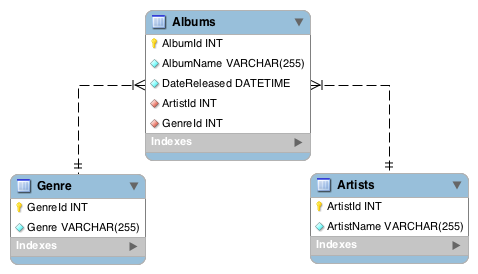
A database schema can be represented in a visual diagram, which shows the database objects and their relationship with each other.
A basic schema diagram representing a small three-table database.
Above is a simple example of a schema diagram. It shows three tables, along with their data types, relationships between the tables, as well as their primary keys and foreign keys.
Ever since its early days, there’s confusion over how to pronounce SQL. If you’ve ever worked in a large team of SQL developers, you might’ve heard some developers pronouncing it as “S-Q-L” or “ess-que-ell” [ ˈɛs kjuː ˈɛl ] and others using “sequel” [ ˈsiːkwəl ].
And the confusion extends itself to commercial and open source products too. Any mispronunciation will extend itself to products such as SQL Server and MySQL, not to mention product tools and features such as MySQL Workbench, mysqladmin, mysqldump, and Access’s SQL view, to name a few.
Both Access and SQL Server are developed by Microsoft. Both are relational database management systems. And both have a large presence in organisations across the world.
But between Access and SQL Server, there are some significant differences.
Microsoft Access and SQL Server are two relational database management systems from Microsoft. Each has its own strengths and weaknesses. There are many cases where Access is the ideal tool for the job. There are other times where a more sophisticated solution like SQL Server is more appropriate.
When trying to decide which one to use, a side-by-side comparison of the technical specifications of each system can help greatly. Below is a side-by-side comparison of some of the technical limitations of each system.
SQL Server is a relational database management system (RDBMS) developed by Microsoft. It is Microsoft’s enterprise level RDBMS offering, and is a more sophisticated and robust system than Access, which has traditionally been a desktop system.
SQL Server is a client-server based system, which means that it operates as a server, typically containing many databases, with multiple clients accessing the databases from across a network. These clients are often other applications (such as a website or CRM system). This is in contrast to desktop systems, where the database will often (but not necessarily) reside on the user’s computer.