If you’re getting error Msg 5133 and error Msg 3156 in SQL Server, it would seem that you’re trying to restore a database to a different location, but you’re not specifying the different location. This can happen when you restore a database to a different environment that uses a file paths. A common cause of this error is when restoring a backup from a Windows environment to a Linux or Mac environment.
Fortunately, the fix is easy. All you need to do is map the logical file names to paths that actually exist in the new environment.
The Error
Here’s an example of code that causes the error:
RESTORE DATABASE [AdventureWorksLT2025]
FROM DISK = N'/var/opt/mssql/data/AdventureWorksLT2025.bak';
Output:
Msg 5133, Level 16, State 1, Line 1
Directory lookup for the file "C:\Program Files\Microsoft SQL Server\MSSQL17.MSSQLSERVER\MSSQL\DATA\AdventureWorksLT2025.mdf" failed with the operating system error 2(The system cannot find the file specified.).
Msg 3156, Level 16, State 3, Line 1
File 'AdventureWorksLT2022_Data' cannot be restored to 'C:\Program Files\Microsoft SQL Server\MSSQL17.MSSQLSERVER\MSSQL\DATA\AdventureWorksLT2025.mdf'. Use WITH MOVE to identify a valid location for the file.
Msg 5133, Level 16, State 1, Line 1
Directory lookup for the file "C:\Program Files\Microsoft SQL Server\MSSQL17.MSSQLSERVER\MSSQL\DATA\AdventureWorksLT2025_log.ldf" failed with the operating system error 2(The system cannot find the file specified.).
Msg 3156, Level 16, State 3, Line 1
File 'AdventureWorksLT2022_Log' cannot be restored to 'C:\Program Files\Microsoft SQL Server\MSSQL17.MSSQLSERVER\MSSQL\DATA\AdventureWorksLT2025_log.ldf'. Use WITH MOVE to identify a valid location for the file.
Msg 3119, Level 16, State 1, Line 1
Problems were identified while planning for the RESTORE statement. Previous messages provide details.
Msg 3013, Level 16, State 1, Line 1
RESTORE DATABASE is terminating abnormally.
It might look quite intimidating, but it’s basically the same two errors (“Msg 5133” and “Msg 3156”) repeated for each file, plus a couple more (“Msg 3119” summarizing the issue and “Msg 3013” explaining that the statement is terminating).
The system was trying to find the file locations specified in the .bak file, but couldn’t. And for good reason – they didn’t exist in the new environment.
In my case, I was trying to restore the AdventureWorks sample database (lightweight version). I was restoring it on my Mac, which runs SQL Server via the Docker container. Given this is a Linux-based container, the file structure is completely different to the Windows environment that produced this .bak file. Linux uses forward slashes instead of backslashes for file paths. Plus it uses a completely different file structure. It doesn’t have the C drive, or the Program Files folder, or any of the other folders for that matter.
But this isn’t just a Mac vs Windows problem. This could happen any time you try to do a simple restore to an environment that uses a different file path than the original one (i.e. the one where the .bak file was created from).
The Solution
We can address the above problem by mapping the logical file paths to file paths that exist in the new environment.
We’ll first want to find the logical file names in the .bak file. We can see these in error Msg 3156 above, along with their physical paths. But we can also get them by running the following:
RESTORE FILELISTONLY
FROM DISK = '/var/opt/mssql/data/AdventureWorksLT2025.bak';
Output:
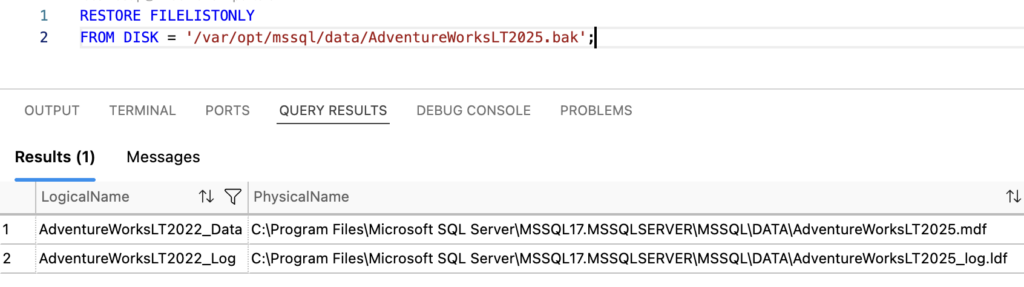
These correspond with the ones from the error message.
This technique is a good one to use any time you’re restoring a database. Otherwise you’ll have to force an error just to get the logical file names.
Now that we know the logical file names, we can go ahead and map them to new locations. And the best part is that we can do this in the same command we use to restore the database.
So in my case, I can restore the database like this:
RESTORE DATABASE [AdventureWorksLT2025]
FROM DISK = N'/var/opt/mssql/data/AdventureWorksLT2025.bak'
WITH
    MOVE N'AdventureWorksLT2022_Data' TO N'/var/opt/mssql/data/AdventureWorksLT.mdf',
    MOVE N'AdventureWorksLT2022_Log' TO N'/var/opt/mssql/data/AdventureWorksLT.ldf';
Output:
Processed 888 pages for database 'AdventureWorksLT2025', file 'AdventureWorksLT2022_Data' on file 1.
Processed 2 pages for database 'AdventureWorksLT2025', file 'AdventureWorksLT2022_Log' on file 1.
RESTORE DATABASE successfully processed 890 pages in 0.035 seconds (198.549 MB/sec).
Total execution time: 00:00:00.399
Done.