An Azure resource group is a container that logically organizes related Azure resources, allowing for easier management, deployment, and access control of those resources. When we do things like create a SQL database, we need to create a resource group for the database to belong to. We can create the resource group while creating the database, but we can also create the resource group separately.
This article shows the steps for creating a resource group separately, from the Azure portal home page.
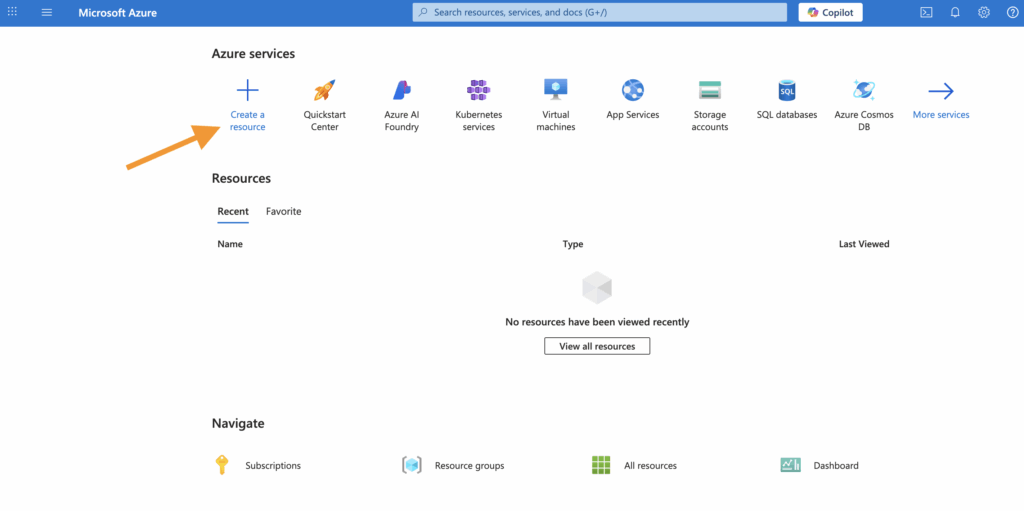
From the Azure portal home page, click “Create a resource”:
This opens the “Create a resource page”:
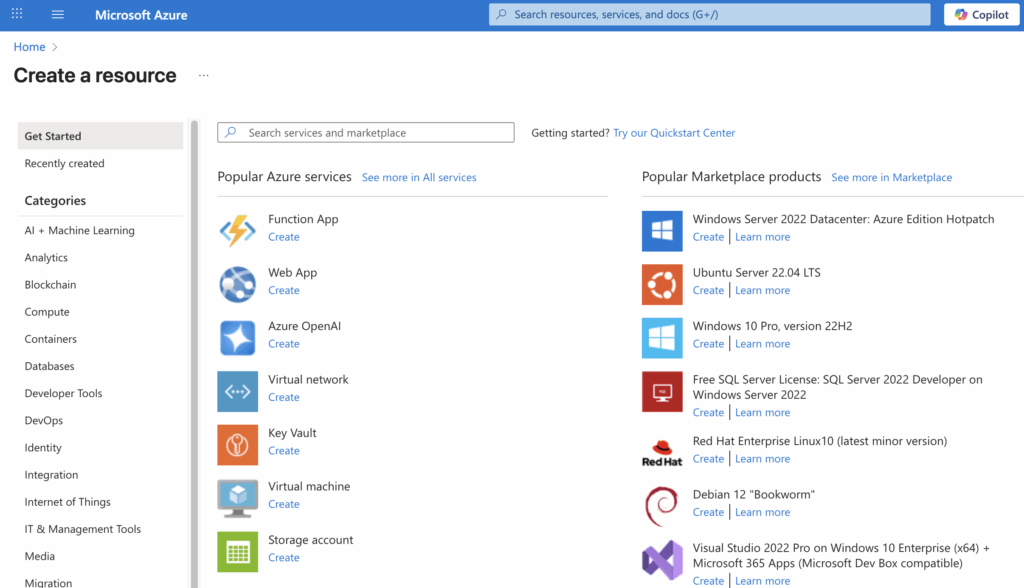
Use the search box to search for “resource group”. Resource group should be one of the top search results:
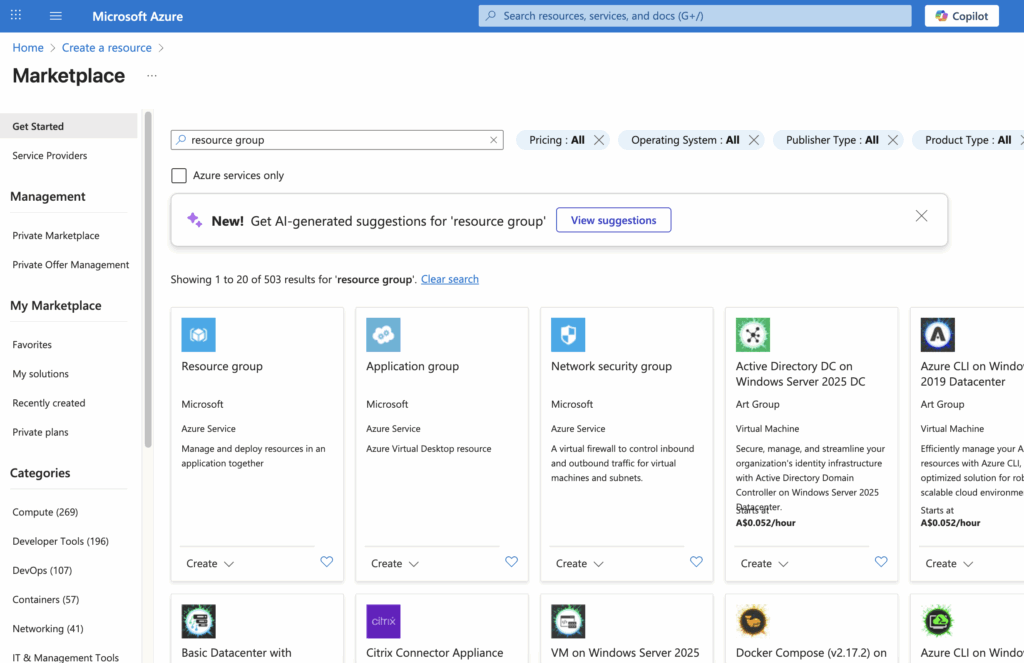
Select the “Resource group” option. This opens the following screen:
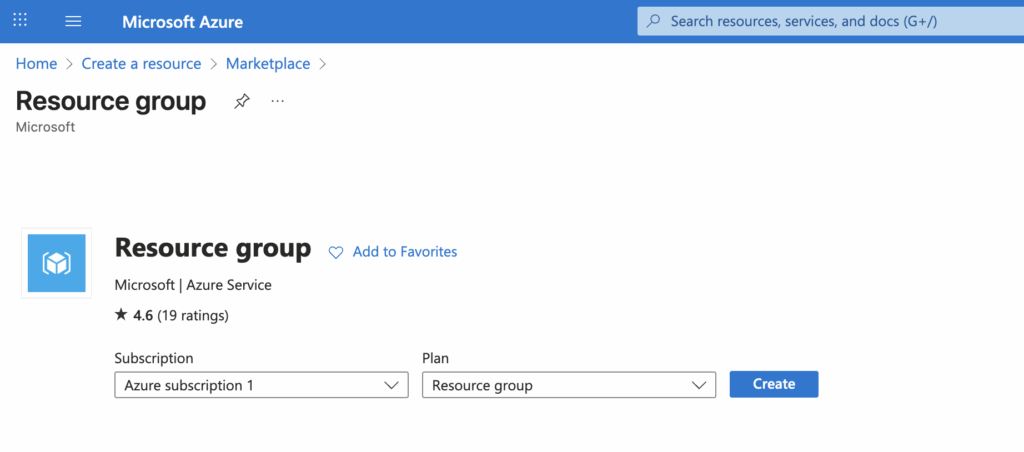
Click “Create”. At the next screen, choose a name for your resource group:
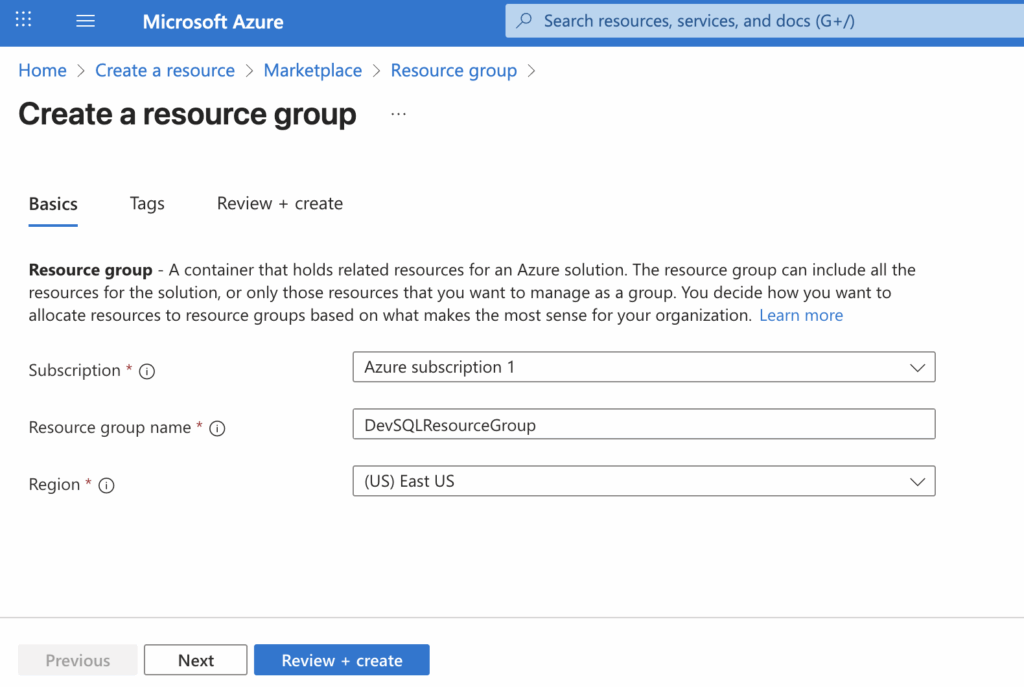
Select a suitable region or leave it at the default if you prefer. Click “Review + create”, which takes you to this screen:
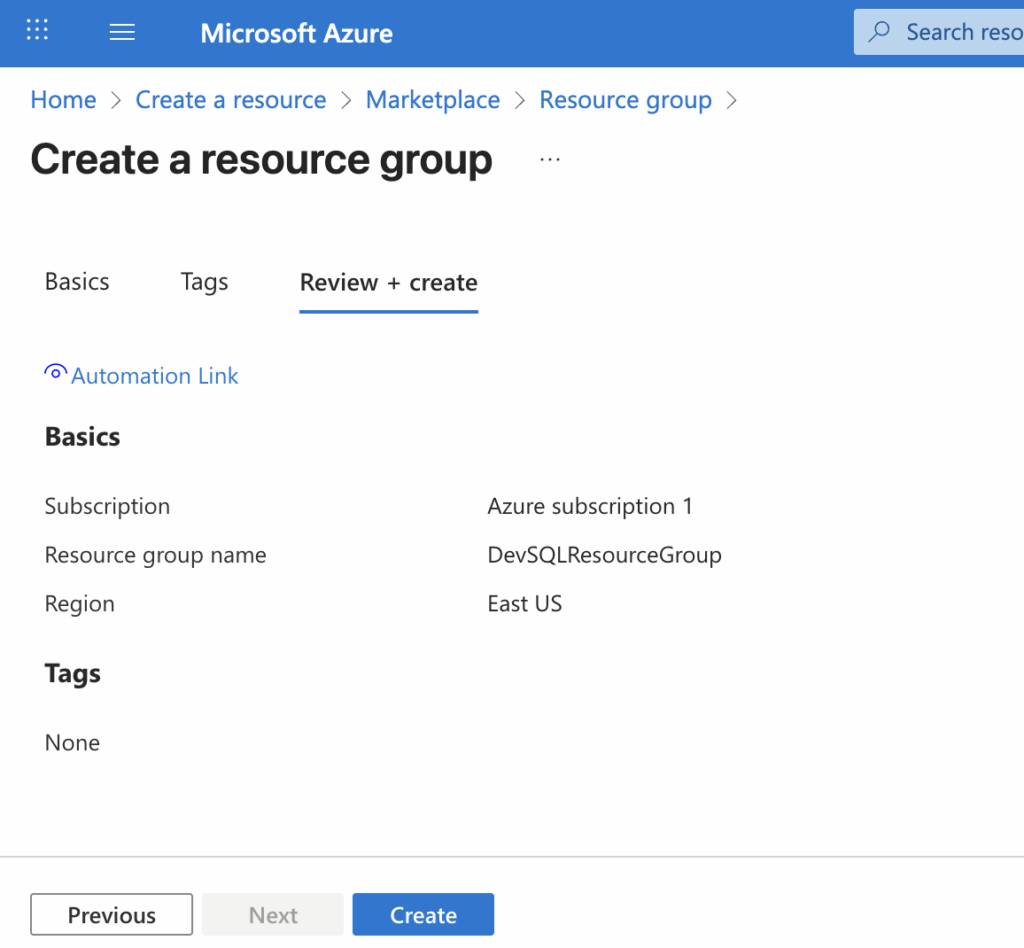
Click “Create”.
The resource group has been created.