The Netflix sample database is a learning database based on public data from Netflix’s Engagement Report and Global Top 10 lists. This guide walks you through installing it on SQLite.
For more background on this database and why it’s useful for learning SQL, check out my introduction to the Netflix sample database.
1. Download the Database File
Head to the Netflix Sample Database GitHub repository and download the SQLite version of the database. The database is on the releases page:
https://github.com/lerocha/netflixdb/releases
There are scripts for other DBMSs, but for SQLite, we can download the actual database file. So go ahead and download netflixdb.sqlite.
This is the complete database file already loaded with all the data. So no installation script is needed.
2. Open the Database
SQLite databases are just files, so you don’t need to set up a server. Just open the file with your SQLite tool.
Using the SQLite command-line tool:
Open your terminal or command prompt and navigate to where you downloaded the file:
sqlite3 netflixdb.sqliteThis opens the database and you can start running queries immediately.
Using a GUI tool:
If you’re using a SQLite GUI like DB Browser for SQLite, DBeaver, or another tool:
- Open the application
- Open or connect to the
netflixdb.sqlitefile - Start exploring the data
Here’s what that looks like in SQLiteStudio:
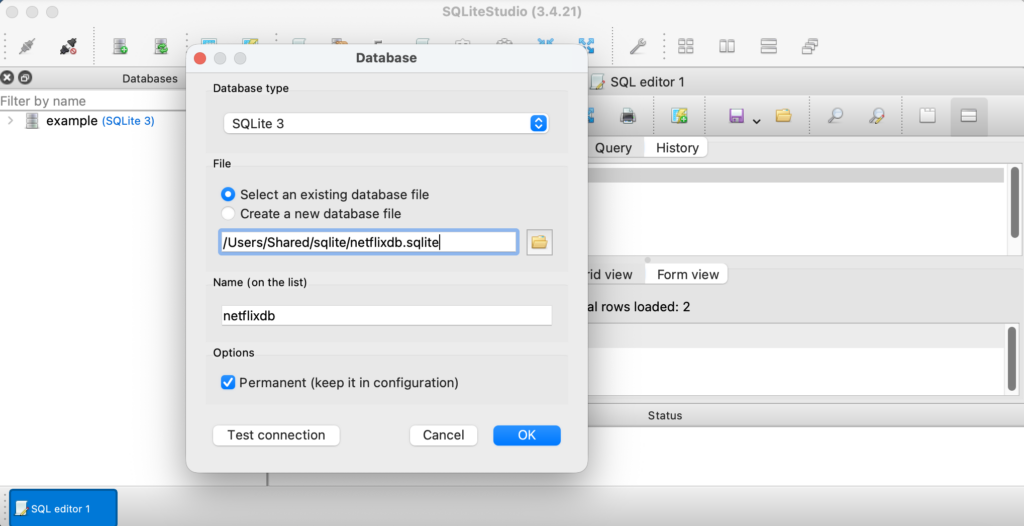
That’s it. Since the database file comes pre-loaded, you’re ready to go.
3. Verify the Installation
If you’re using the sqlite3 command line tool, you can use the .tables command to see all tables in the database:
.tablesIf you’re using a GUI, use the following:
-- See all tables
SELECT name
FROM sqlite_master
WHERE type='table'
ORDER BY name;
The results should include the movie, season, tv_show, and view_summary tables.
You can use the following query to check the row counts in each of the tables:
-- Count rows in each table
SELECT 'movie' as table_name, COUNT(*) as row_count FROM movie
UNION ALL
SELECT 'season', COUNT(*) FROM season
UNION ALL
SELECT 'tv_show', COUNT(*) FROM tv_show
UNION ALL
SELECT 'view_summary', COUNT(*) FROM view_summary;
If you see data in these tables, you’re all set.
Explore the Schema
Take a look at the structure of the tables:
-- View the schema for a table
PRAGMA table_info(movie);
You can run this for each table (movie, season, tv_show, view_summary) to see what columns are available.
Sample Queries
Here are a few queries to start exploring:
View movies:
SELECT *
FROM movie
LIMIT 10;
Count content:
SELECT COUNT(*) as total_movies
FROM movie;

SELECT COUNT(*) as total_shows
FROM tv_show;
If Something Goes Wrong
- Can’t open the file: Make sure you’re using a recent version of SQLite and that the download completed successfully.
- File not found: When using the command line, verify you’re in the correct directory where the
netflixdb.sqlitefile is located. - Corrupted database: If you get database errors, try downloading the file again.
As mentioned, all scripts for the Netflix sample database are updated regularly with the latest data. So by all means go back and download the latest scripts whenever you need more current data.